What is server-driven UI? Three levels, and when to skip it
Server-driven UIExplainer5 min readMiniwall team
Part of the series: Server-driven UI: a field guide for app teams
Server-driven UI means the backend sends a description of a screen, and the app contains a renderer that turns that description into real buttons and text. The app still owns the pixels and what happens on a tap. The server owns what is on the screen.
Steps in order, with who does each: Server or App.
- Server: Sends a screen description
- App: Renderer draws it
- App: Person taps
- App: App code handles the action
Here is the situation it exists for. Someone spots a typo in the headline of your upgrade screen. In a shipped native app, fixing it means a new build, a store review, and then waiting for people to update. One line of text, a week of calendar. Server-driven UI is one way to stop paying that price for things that change often.
Three levels, from small to big
People use the term loosely, so it helps to separate three levels.
Level 1: the server sends data only. The app has the layout built in and fetches the strings, prices or image URLs to fill it. Most apps already do this. It's fast to build and it never surprises anyone. It can't add a new block to the screen.
Level 2: the server also sends layout. Now the response says which components appear and in what order: a title, a price row, a button. The app has a fixed set of components it knows how to draw, and the server picks from that set. This is what most people mean by server-driven UI.
Level 3: the server also names the actions. Each button carries an action name such as purchase or close. The app maps those names to its own code. The server never sends code, only the name of something the app already does.
| Code in the app | Data from the server | Server-driven UI | |
|---|---|---|---|
| Text and images | App | Server | Server |
| Which components, in what order | App | App | Server |
| What a button is called in the response | Not applicable | Not applicable | Server |
| What a tap actually does | App | App | App |
Swipe sideways to see every column.
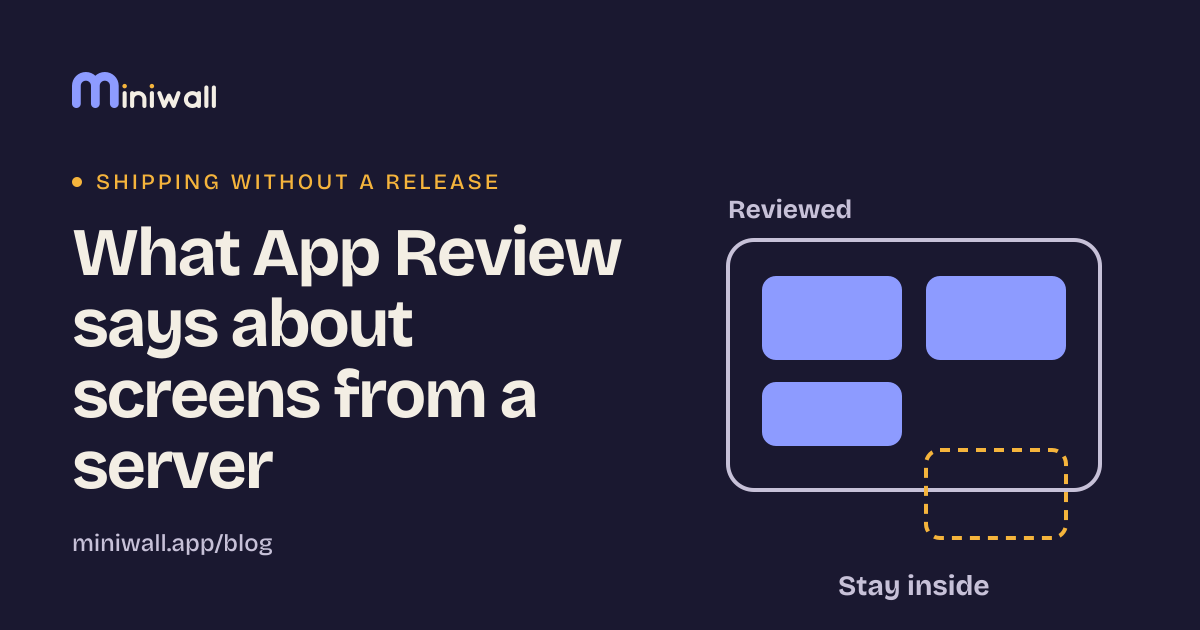
The last row matters most. In all three, the code that runs is in the app, and it was reviewed when the app shipped.
Before
Change in a shipped app
- Edit
- Build
- Store review
- Users update
- Live
After
Change in a server-driven screen
- Edit
- Live
What it looks like
This is an illustration we wrote for this post. It isn't the format of any real product, and the field names are made up.
{
  "screen": "upgrade",
  "children": [
    { "type": "title", "text": "Export without limits" },
    { "type": "price", "planId": "pro_monthly" },
    { "type": "button", "text": "Upgrade", "action": "purchase", "planId": "pro_monthly" },
    { "type": "button", "text": "Not now", "action": "close" },
    { "type": "confetti" }
  ]
}
And a renderer that could draw it in a browser. Again an illustration, not a library:
function el(tag, text) {
  const e = document.createElement(tag);
  e.textContent = text;
  return e;
}

const renderers = {
  title: (n) => el("h2", n.text),
  price: (n, app) => el("p", app.priceFor(n.planId)),
  button: (n, app) => {
    const b = el("button", n.text);
    b.onclick = () => app.onAction(n.action, n);
    return b;
  },
};

function render(node, app) {
  const draw = renderers[node.type];
  return draw ? draw(node, app) : null; // a component this app doesn't know is skipped
}

// screen = the JSON above; app = your code
root.append(...screen.children.map((n) => render(n, app)).filter(Boolean));
Look at the two highlighted lines. The confetti component in the JSON has no renderer, so it's skipped and the rest of the screen still works. Every real system has to decide what an old app does with a component it has never heard of. That choice is most of the engineering.
Also look at app.priceFor and app.onAction. The description names a plan and an action. Your code decides the price string and what a purchase means.
How this sits with store rules, and where to be careful
Apple's guideline 2.5.2 says apps may not "download, install, or execute code which introduces or changes features or functionality of the app" (as of 2026-10-25)[1]. Google's page on dynamic code loading says "many forms" of it, "especially those that use remote sources", violate Play policy[2].
A description made of component names and strings isn't code, which is why this pattern fits mobile apps. Flutter's own remote-widgets package makes the same split: its remote libraries are declarative, so "they cannot represent executable closures", and you can only assemble widgets the app already contains[3].
We're not lawyers, and policies change. If your format starts to look like a scripting language (conditions, loops, expressions that act like programs), re-read the current rules before you ship it.
What it costs
- Old apps. A phone can run a build from months ago. New components don't exist there. You need a fallback rule and you need to test it.
- Testing. The screen is now data, so a bad edit is a runtime bug, not a compile error. Validate before you publish.
- Accessibility and polish move into the renderer. Focus order, labels and text scaling are your renderer's job, once, for every screen. That's a plus if you do it well and a multiplier if you don't.
- Debugging. "Why does this screen look wrong?" now has two places to look.
When we wouldn't use it
Our opinion, not a rule:
- The screen is dense with interaction: drag and drop, custom gestures, tight animation. Describing that in data costs more than writing it.
- The screen changes twice a year. Level 1, or just shipping it, is cheaper.
- You only need to change a number or switch something on and off. A remote config value or a feature flag does that with far less machinery.
- You have one platform and a team that releases daily. The wait you'd remove isn't there.
It pays off when a screen changes often, runs on several platforms, and the person who wants to edit it isn't the person who ships the build.
For the other ways to change a live app, see ways to change a live app without shipping a release.
Sources
- Apple, App Review Guidelines, 2.5.2 (opens in a new tab)developer.apple.com · accessed
- Android Developers, Dynamic code loading (opens in a new tab)developer.android.com · accessed